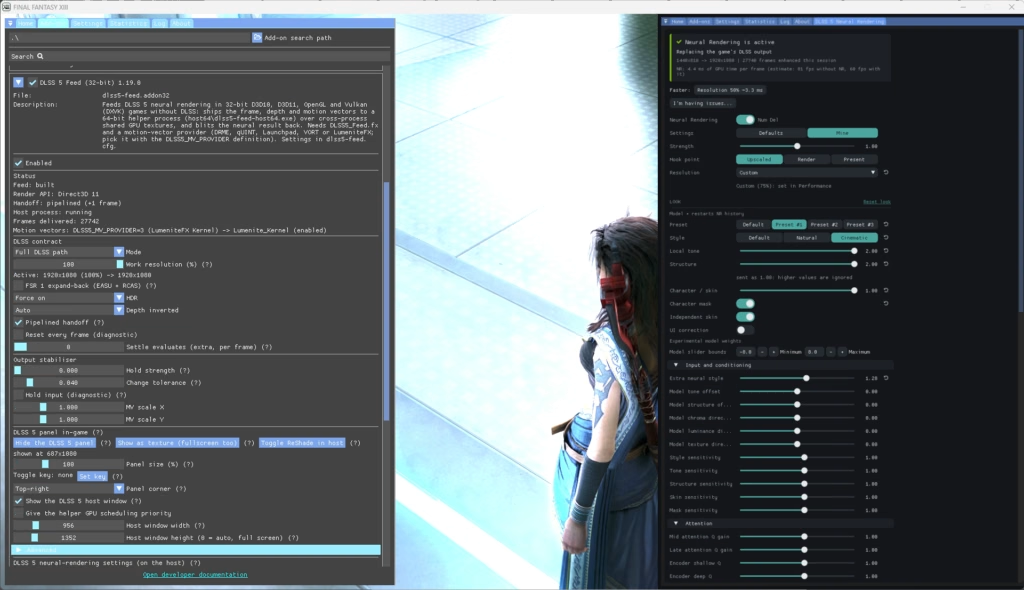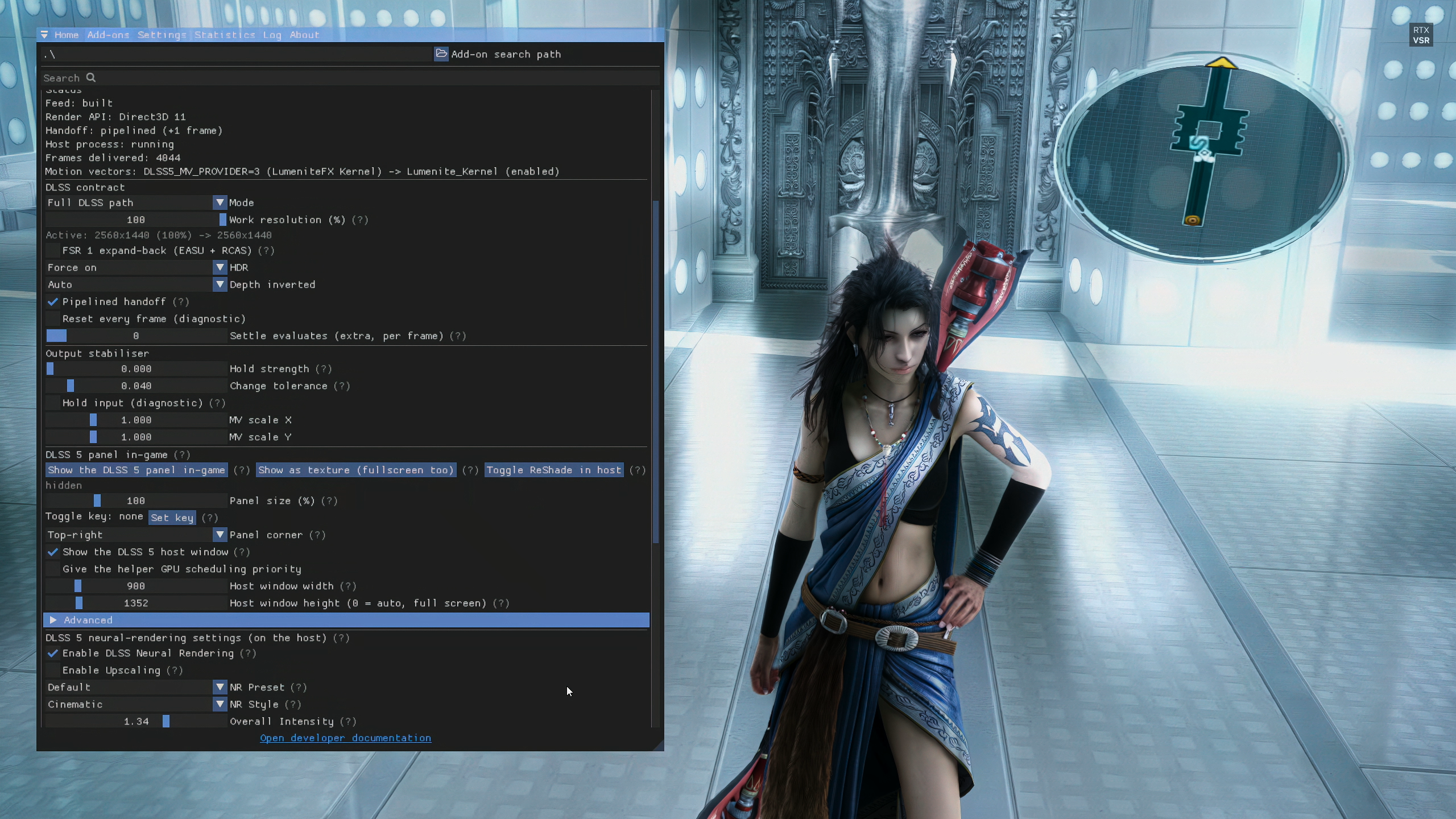
In my opinion, Final Fantasy XIII is hot garbage in its default state on PC/Steam. Even without installing any graphical mods, the game often surpasses the 2GB VRAM limit and crashes when running game resolutions 1080p and above; Square-Enix never fixed this, and 3rd party mods are still required to fix it till this day. This guide focuses exclusively on the Steam version of Final Fantasy XIII and I’m uncertain if these will work on the Microsoft/Xbox PC Store version.
Downloads
- 7-Zip or WinRAR (for extracting files from archives/zip)
- dgVoodoo2 (translates calls from DirectX 9 and older to DirectX 11 or DirectX 12)
- ReShade with full add-on support
- 4GB Patch (Raises the VRAM limit from 2GB to 4GB)
- FF13Fix
- DLSS 5 Feeder
- DLSS Streamline & RenoDX addon for ReShade (most necessarily downloads are located under DLSS 5 downloads of the Discord server)
4GB Patch
Final Fantasy XIII by default is hard-capped at 2GB of VRAM and will crash once usage exceeds that; installing mods that improve the graphics will likely cause cause that, so the game executable (not launcher) has to be patched to bump the max VRAM to 4GB since this game is 32-bit, not 64-bit which allows the max VRAM to exceed 4GB. Make a copy of ffxiiimg.exe under white_data\prog\win\bin and rename it to untouched.exe. Use the 4GB patch app and select the original ffxiiimg.exe to be patched. Both .exe files should be both under the same folder.

ReShade
Run whatever is the current version of ReShade with addon support and select the ffxiiimg.exe —> select the Microsoft Direct 10/11/12 option —> Next you will see a bunch shaders to choose from — besides the base, check lumeniteKernel.fx under LumeniteFX.
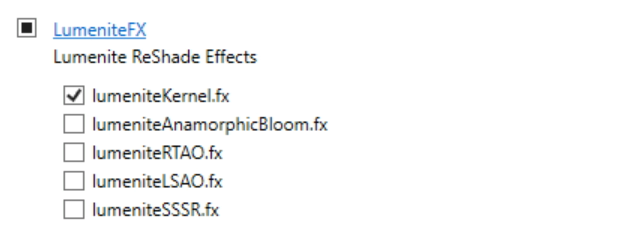
You can skip the addons after that. By default the ReShade32.dll file will be named dxgi.dll, rename that to d3d11.dll because we need to translate the DX9 calls to DX11 since this game is limited to the DX9 API.
Make a host64 folder under the same folder as where the ffxiiimg.exe is located in, should be under white_data\prog\win\bin as well. Extract ReShade64.dll from the ReShade_Setup_x.x.x._Addon.exe with either 7-Zip or WinRAR to the host64 folder than was made earlier.
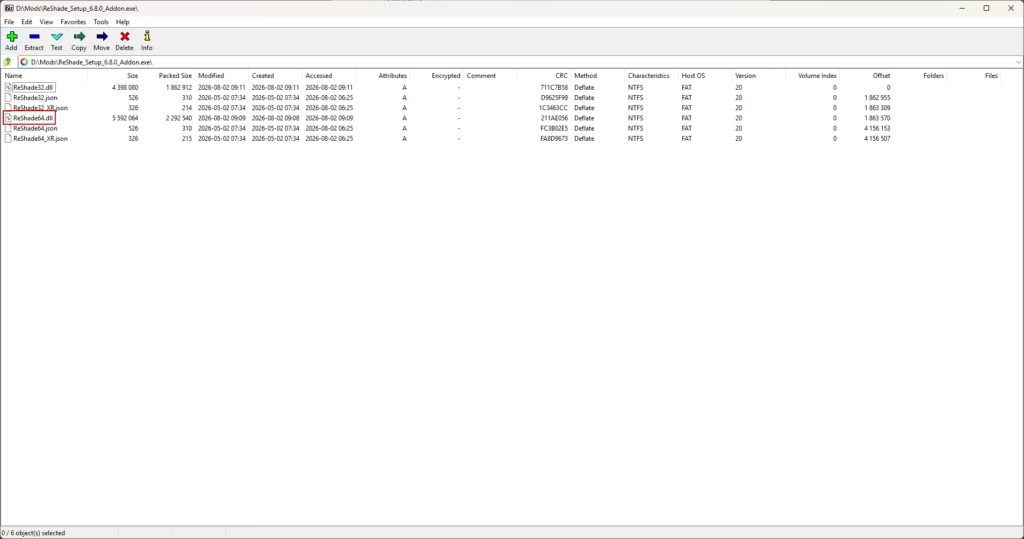
Then, rename the ReShade64.dll file to dxgi.dll.
FF3Fix
Extract both d3d9.dll and FF13Fix.ini under white_data\prog\win\bin.
DLSS 5 Feeder
Extract dlss5-feed.addon32 under white_data\prog\win\bin. Following that, under reshade-shaders\Shaders, extract DLSS5_Feed.fx which is under a similar subfolder structure (reshade-shaders\Shaders) inside the zip archive/folder of the DLSS5-Feeder-x.x.x.zip. Next extract dlss5-feed.addon64 into the host64 folder.
dgVoodoo2
Extract from both dgVoodoo.conf and dgVoodooCpl.exe to white_data\prog\win\bin. Next extract D3D9.dll from MS\x86 inside the dgVoodoo2_x_x.zip folder to a temporary and easy to find location in your PC such as the desktop and rename the file to dxvk.dll (we don’t want that D3D9.dll to accidentally overwrite the existing d3d9.dll file from FF13Fix); after renaming the file, place it under white_data\prog\win\bin.
Double click on the dgVoodooCpl.exe extracted earlier to change the following things:
Changing Settings In The General Tab:
- Under Output API select Direct3d 11 (feature level 11.0)
- Select the video card you want to use under Adapter(s) to use /enable.
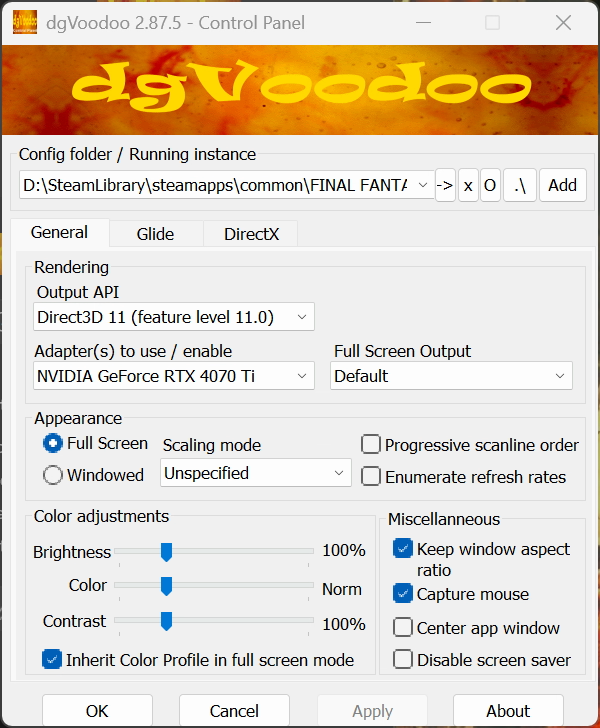
Changing Settings In The General tab:
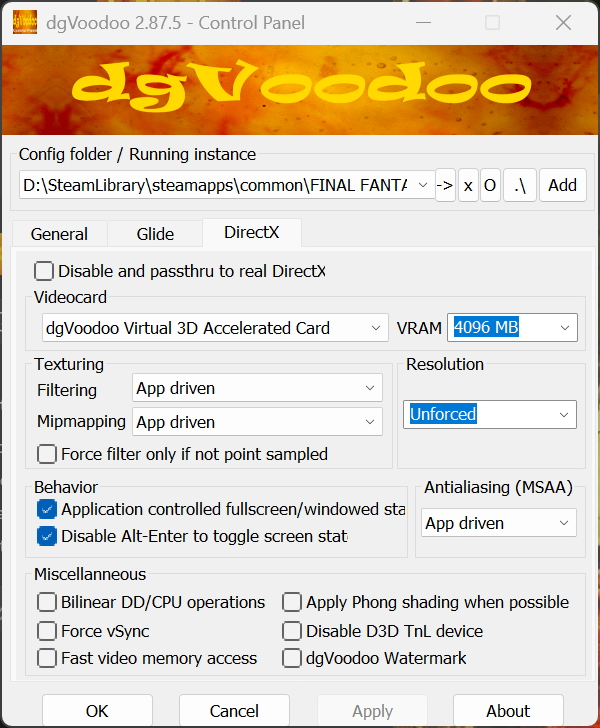
- Under Videocard, select dgVoodoo Virtual 3D Accelerated Card and bump the VRAM to 4096 MB
- You can uncheck dgVoodoo Watermark now or later (this is something to help you see if dgVoodoo2 is working correctly when loading up the game)
DLSS Streamline Files
Extract all files from DLSSx.x.x-Streamlinex.x.zip into white_data\prog\win\bin\host64.
Optional:
If you have an Nvidia GeForce 40xx series card or older, you’ll have to replace the default nvgx_dlssnr.dll with a modded one.
In addition, the Renodx modders are still releasing updated versions of the nvgx_dlssnr.dll file, so check their Discord server for updates to replace the one that comes with the Streamline zip folder.
RenoDX
Extract either renodx_dlss.addon64 or renodx-dlss5-vx.x.-model.addon64 to white_data\prog\win\bin\host64; you can only use one of the files since they conflict with each other. The renodx_dlss.addon64 has more simpler controls while the renodx-dlss5-vx.x.-model.addon64 has significantly larger amount of controls which gives you more granular control of how the game appears.
When you launch the game, press the home button on your keyboard launch the ReShade menu. Under the effects, set LUMENITE: Kernel 2.0 at the top and DLSS 5 Feed on the bottom. In addition, under dlss_feed make sure the DLSS5_MV_PROVIDER is set to 3 which corresponds to LUMENITE: Kernel 2.0.

Under the Add-ons tab of the ReShade menu, scroll to the DLSS 5 Feed (32-bit) and press DLSS 5 in-game to bring up another ReShade menu (this was that was renamed dxgi.dll under the host64 folder).
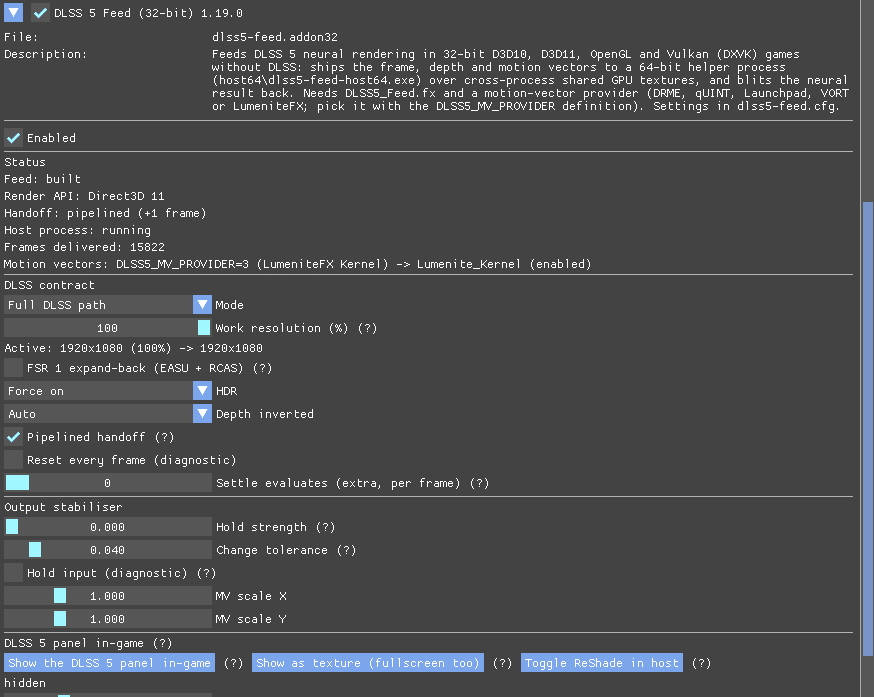
Ignore all the tabs and drag the Renodx addon to fit in menu as a tab. With the Renodx addon tab, you can now adjust the DLSS 5 settings to your liking.